User roles control who has administrative access and who receives email alerts. This article explains how to change a user’s role.
Before You Start
- You need an administrator account. Only administrators can promote or demote users.
Change a User’s Role
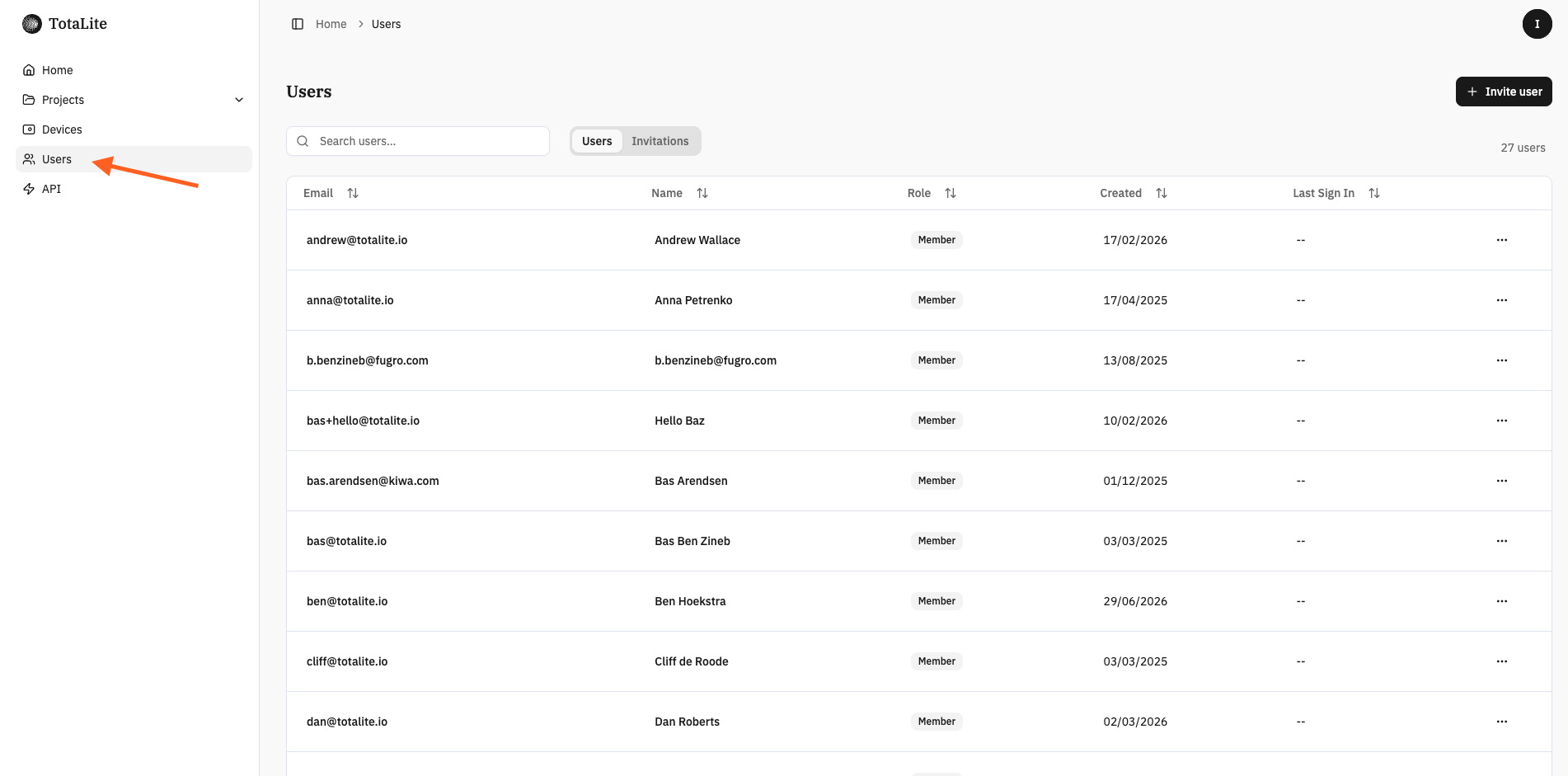
1. Open the Users menu
Select Users. Administrators can see every user on the platform.
2. Promote or demote a user
Change the user’s role to match their responsibilities.
3. Confirm and save
Check the change is intentional, then save.
How Roles Affect Notifications
- Email alerts go to administrators only.
- Platform notifications are visible to both members and administrators.
Review roles from time to time so the right people have the right access and receive the right alerts.